
Sometimes Google will randomly ask you to grant Offline Access when using Flashissue and seemingly lock you out of Flashissue / Gmail. If you see this message you will need to reset your permissions; uninstall the Chrome extension and reinstall the extension.
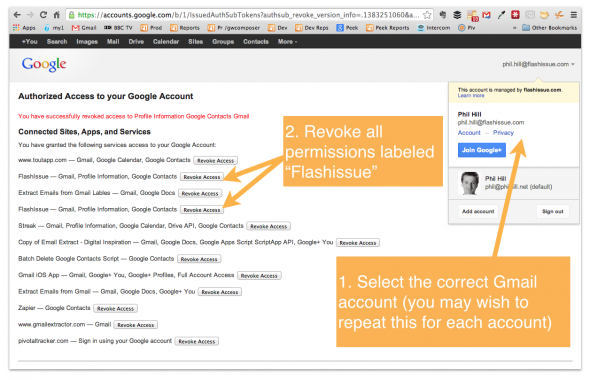
You can revoke Flashissue permissions with Google by doing the following:
- Make sure you are logged into the correct Google account.
- Access the Google permissions screen by clicking this link: https://accounts.google.com/IssuedAuthSubTokens
- Make sure you are looking at the correct Gmail account
- Click Revoke button for all permissions labeled "Flashissue"
- Repeat this for all the Gmail accounts that may have the Offline permission issue.
- You will need to uninstall the Flashissue Chrome Extension and reinstall it.
To remove the Flashissue extension:
- Type in the address into your Chrome browser address: chrome://extensions/
- Find the Flashissue extension and delete it by clicking the Trash icon
- Logout of Gmail
Reinstall the Flashissue extension:
- Re install the Flashissue extension from the Chrome store:https://chrome.google.com/webstore/detail/newsletter-creator-for-gm/cihaednhfbocfdiflmpccekcmjepcnmb?hl=en
When you come to use Flashissue you will be prompted by Google to grant permissions to Flashissue again (go ahead and accept the permissions).
0 Comments